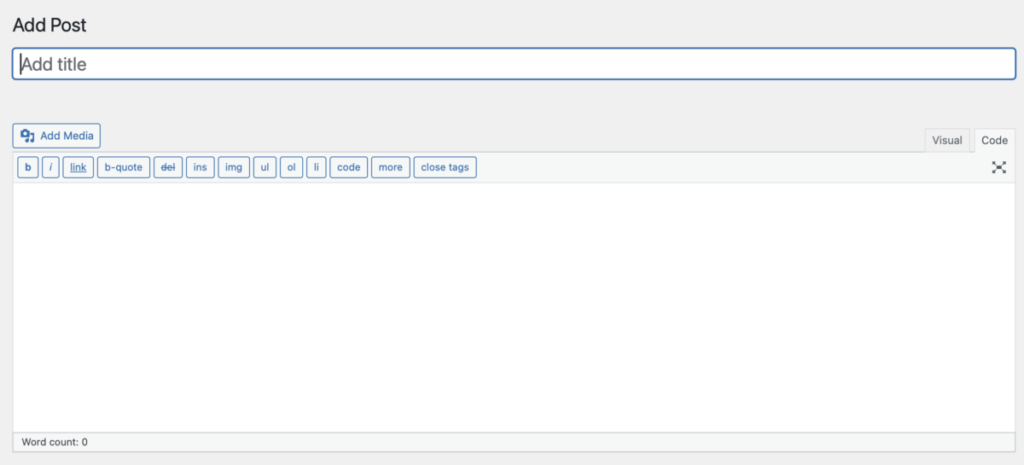
WordPress got rid of their Classic Editor in favor of the Block Editor at the end of 2018. I’m not one that likes change, and I really do not like the block editor. In order to get classic editor back, you need to install the Classic Editor plugin and enable it. I was looking to see if a plugin was available that could add some options to in classic editor that would allow me to add snippets of code to my blog posts.
What are code snippets?
I’m not sure if this is the technial term, but they are essentially blocks of code that keep your code formatting and text in tact. This is helpful when I’m writing posts about Docker and I’m trying to share my compose.yml files in a blog post.
Here is what a sample code snippet looks like:
services:
  wordpress:
    image: wordpress:latest
    network_mode: host
    container_name: wordpress
    restart: unless-stopped
    ports:
      - “8727:80”
    environment:
      WORDPRESS_DB_HOST: database # Name of your database service
      WORDPRESS_DB_NAME: wordpress
      WORDPRESS_DB_USER: wp_Richard
      WORDPRESS_DB_PASSWORD: UseYourOwnPasswordHere
    volumes:
      - /volume2/docker/wordpress/data:/var/www/html
You can see it stands out with the font being slighly different and a box around the code.
How to get code snippets to appear in WordPress classic editor
While writing your blog post, click the “Code” tab in the upper-right corner to switch to the HTML editor. Go to where you want the code snipper to appear and enter the following:
<pre><code>
Your code goes here.
</code></pre>
Preivew your post, and it should appear like the code sample above!
Conclusion
Code snippets are a handy way to show your code in a WordPress blog post that is using the Classic Editor. use the <code>and <pre> HTML tags in the Code tab, and you should be all set! No additional plugins required.