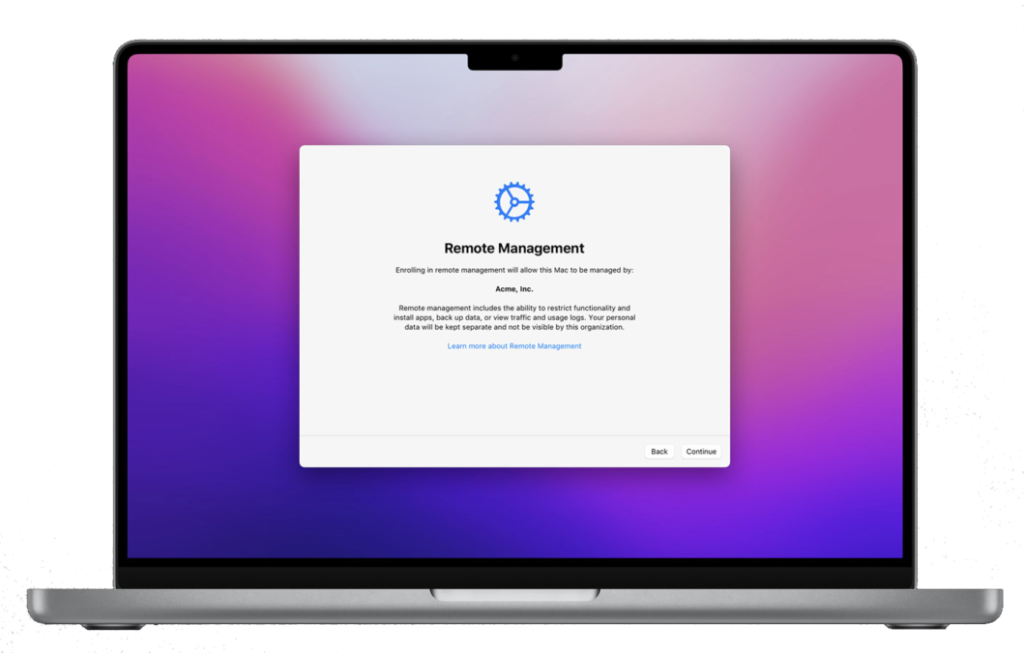
FOR VENTURA VERSION 13 FRESH INSTALL
Here is how you can bypass MDM completely …
Boot to Recovery
Open Terminal and enable the root user and give it a password:
Enter the command below and press Enter
dscl -f /Volumes/Macintosh\ HD\ -\ Data/private/var/db/dslocal/nodes/Default localhost -passwd /Local/Default/Users/root
There might be a slight directory difference between Intel/Silicon. If the command above does not work try using one of these variations:
/Volumes/Macintosh\ HD\ -\ Data/ or /Volumes/Data/
Enter a new password for root user. Note * If you choose a simple password be aware that the root user will be available as a user that can log into macOS which could present a risk to the security of the device.
Once complete click the Apple logo -> Reboot or in Terminal type Reboot then press Enter and let macOS start-up.
Show the hidden menubar and go to System Settings when the Setup Assistant begins by pressing Command + Option + Control + T together.
Click the Apple logo > System Settings -> Users & Groups
Create an admin user with your username and password then click Add Account. The authentication window will appear and autofill the username as user “System Setup”. Change this to “root” and use the password you created earlier in Terminal.
Use the Apple menu and select Reboot and if this does not work, force off your Mac by holding the power button down at least 10 seconds.
Boot to Recovery again.
Open Terminal and enter the command below and press Enter.
touch /Volumes/Macintosh\ HD\ -\ Data/private/var/db/.AppleSetupDone
Then type Reboot and press Enter or force off your Mac again using the steps above.
How to ByPass 2023 MacBook M2Max MDM
FOR SENOMA VERSION 14 after Ventura upgrade:
Disable annoying Remote Management Pop-Up after upgrading to macOS Sonoma (14)
Apple further added a new gate preventing people from using their DEP-enabled Macs without installing the profiles in macOS Sonoma. After upgrading from a fully-working Ventura copy (with MDM servers blocked in hosts) to macOS Sonoma DP 1, your Mac will want to give you a pop-up window every 10 mins reminding you to install a DEP profile. Did some experiments and I think Apple is secretly pinging their MDM servers no matter you have an active profile associated w/ SN or not. As long as the servers are not reachable they will annoy you with their new pop-up system.
The Workaround
(1) Disable SIP in 1 True Recovery
(2)
sudo rm /var/db/ConfigurationProfiles/Settings/.cloudConfigHasActivationRecord
sudo rm /var/db/ConfigurationProfiles/Settings/.cloudConfigRecordFound
sudo touch /var/db/ConfigurationProfiles/Settings/.cloudConfigProfileInstalled
sudo touch /var/db/ConfigurationProfiles/Settings/.cloudConfigRecordNotFound
(3) you’re all set. enjoy this boring upgrade